Adding the left navigation menu to web part pages in SharePoint 2010
I taught a SharePoint 2010 super-user class last week, and the students experienced like so many before them that the web part page layouts which come with SharePoint 2010 removes the left hand navigation menu (the quick launch).
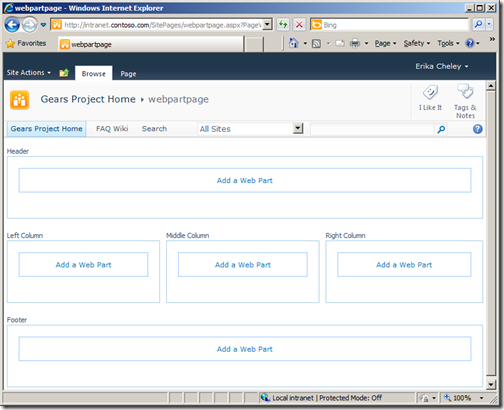
This is nothing new and it has been blogged about since 2007. But on my 15 minute Google spree this morning I could not find a recipe which worked 100% with SharePoint 2010, so I will give it a try myself, and hopefully this can help some others in the future. I’m sure someone else has a complete post on this which I missed, but at least I have leveled up myself in the use of SharePoint Designer and modifying existing layouts instead of creating custom ones :)

Delete this code block.
Step 4 – Remove the overrides for the left column
Further down you will find three lines which prevents the left column for rendering.
Remove all three lines.
Step 5 –Save the page
Save and publish your page.
Step 6 – Preview your changes


This is nothing new and it has been blogged about since 2007. But on my 15 minute Google spree this morning I could not find a recipe which worked 100% with SharePoint 2010, so I will give it a try myself, and hopefully this can help some others in the future. I’m sure someone else has a complete post on this which I missed, but at least I have leveled up myself in the use of SharePoint Designer and modifying existing layouts instead of creating custom ones :)
Step 1 – Create a new web part page
Create a new web part page either via SharePoint or SharePoint DesignerStep 2 – Edit the page in SharePoint Designer
Edit your web part page in “Advanced Mode” in SharePoint Designer
Step 3 – Remove custom css
Around line 34 you will find a code block like the one below<SharePoint:UIVersionedContent ID="WebPartPageHideQLStyles" UIVersion="4" runat="server">
<ContentTemplate>
<style type="text/css">
body #s4-leftpanel {
display:none;
}
.s4-ca {
margin-left:0px;
}
</style>
</ContentTemplate>
</SharePoint:UIVersionedContent>Delete this code block.
Step 4 – Remove the overrides for the left column
Further down you will find three lines which prevents the left column for rendering.
<asp:Content ContentPlaceHolderId="PlaceHolderPageImage" runat="server"></asp:Content>
<asp:Content ContentPlaceHolderId="PlaceHolderNavSpacer" runat="server"></asp:Content>
<asp:Content ContentPlaceHolderId="PlaceHolderLeftNavBar" runat="server"></asp:Content>
Remove all three lines.
Step 5 –Save the page
Save and publish your page.
Step 6 – Preview your changes