Showing posts with label modern. Show all posts

Monday, February 11, 2019

Locate pages where a particular web part is being using on modern SharePoint sites

close up photography of LED bulb on sand

This post was inspired by https://beaucameron.net/2019/01/17/experiment-find-out-where-spfx-web-parts-are-being-used-in-modern-sharepoint-sites/, but I’ve simplified things a bit as some of the steps are not needed. I also opted to use PnP PowerShell.

There is no defined API to find usages of specific SharePoint Framework web parts on modern pages. But fortunately for us the id of each web part is included in the searchable content for modern pages (no need to map up a particular refinable string for this as per the inspired post).

Note: Only pages you have access to will be listed – if you need all pages you can elevate search permissions using app-only permissions, which is (dangerous) different story.

Friday, January 4, 2019

Eh??? Ok? Be aware of a modern change which can impact your classical way of displaying search results

image
My colleague Tarald recently discovered that when looking at the managed property CreatedBy for modern pages where you have filled in the author byline, it will show the primary e-mail address, display name, and claims token for that user (and the claim includes the user principle name).

foo.bar@contoso.com | Bar, Foo | 693A30232E667C6D656D626572736869707C666F6F2E62617240636F6E746F736F2E636F6D i:0#.f|membership|foo.bar@contoso.com

Maybe not a big deal, but since forever, this managed property has contained only the display name of the user, nothing else. I’m not saying it’s a bad thing to give all the data as that disambiguates people with the same name, but what’s bad is changing default behavior which has been consistent for a long time.

The culprit to it all is that Microsoft has decided to map the crawled property ows_q_USER_AuthorByline as the first property when populating the managed property CreatedBy. The same mapping is done to the AuthorOWSUSER managed property, which is ok, as this property always had all data included.

image

The best option in my opinion is for Microsoft to remove this mapping, and create a new AuthorByLine managed property instead. That’s the way SharePoint developers have been taught to do when introducing new values. You can also change the mapping yourself, but that might mess up some oob web parts.

Monday, September 3, 2018

Puzzlepart presents the modern flexible Divider web part

Did you ever think the Divider web part for modern pages was too restrictive? Maybe you wanted to cross that divide with a wider one, maybe you wanted to separate with colors? Don’t worry – now you can!

The sharing minds of Puzzlepart hereby introduce the flexible divider web part which allows you to set both the width and the color!

preview

Get the web part code from the link below, or contact us if you want assistance on a pre-compiled tenant wide distributed web part.

https://github.com/Puzzlepart/spfx-solutions/tree/master/Pzl.Part.Divider

Monday, August 6, 2018

Highlighting which page is the welcome page in a site

A week ago Joanne Klein posted a request on twitter where she asked if it was possible to easily see which page is the home page or welcome page of a site. In a library with hundreds of pages, this can be quite useful indeed.

image

Technically the information about which page is the home page is stored as property on the root folder of the web (almost a mouthful there), which translates to that it’s not stored on the page it self, thus not “easily” set by adding a column.

The developer in me figured I could whip up a quick custom field renderer for the modern page library and have this working in a matter of minutes. Turns out, it’s not that easy. (A field renderer is a piece of code which shows a column value in any way you decide, instead of the default way – for example add a red background color.)

Either way, head over to https://github.com/Puzzlepart/spfx-solutions/tree/master/Pzl.Ext.HighlightHome if you want to download and install a solution which does highlight the home page for you. Install instructions are on that page as well.

image

Monday, May 28, 2018

How to reset a modern home page using PnP PowerShell


Photo by Nikita Kostrykin at Unsplash

Here’s a short snippet which will reset any modifications done to a modern home page back to the default layout.

Basically you clear out the CanvasContent1 field which stores the page layout and contents.

Connect-PnPOnline https://<tenant>.sharepoint.com/sites/mysite
# Get welcome page url
$web = Get-PnPWeb -Includes WelcomePage
# Load the page
$file = Get-PnPFile -Url $web.WelcomePage
# Get the page's item
$item = $file.ListItemAllFields
# Load the item id
Get-PnPProperty -ClientObject $item -Property Id
# Clear the content to reset
Set-PnPListItem -List SitePages -Identity $item.Id -Values @{"CanvasContent1"=$null} -SystemUpdate

Thursday, January 11, 2018

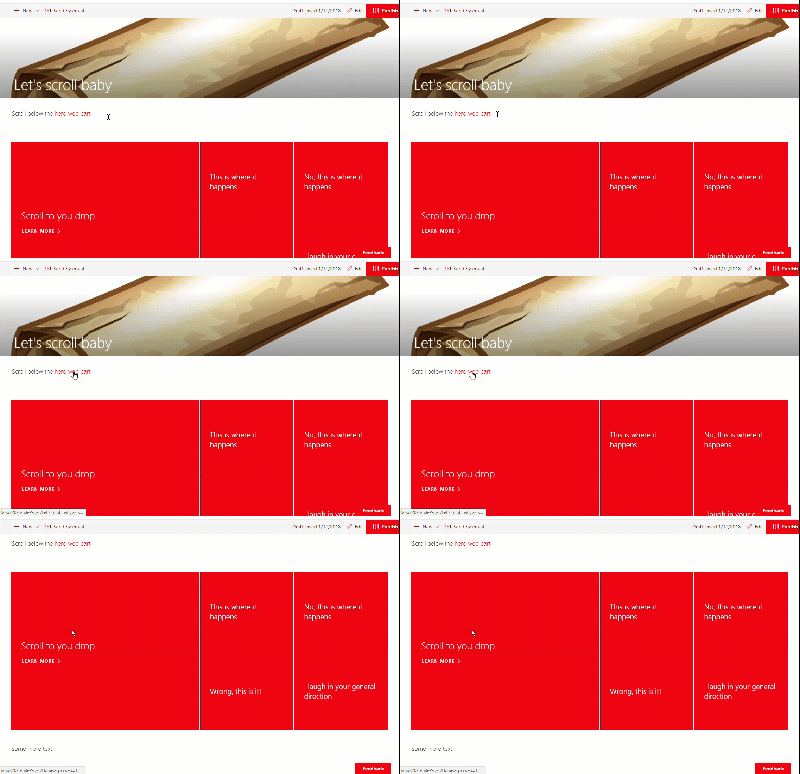
Creating anchor link scrolling on a modern page using the Modern Script Editor Web Part

There are times when you might have some topical links at the top of a page, and once clicked you want the page to scroll down to the right section. This is a perfect use-case for the Modern Script Editor web part. The Modern Script Editor web part is part of the PnP sample web parts project at Github. (A pull request with an updated version to SPFx v1.4 is in the progress of being processed.)

First add a text section, highlight the link part and in the address field type a hash sign and a unique name. In my case I use #scrolltome.

image

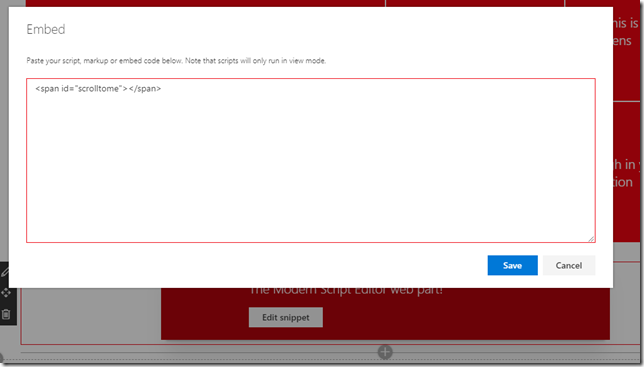
Below the hero web part I add an instance of the Modern Script Editor web part. And this is the easy part. Paste in either of the following HTML snippets and your page will scroll down to this place once the above link is clicked. In the old days anchor tags was used for this, but in these modern times any tag with a unique id works.

  • <a name="something"></a>
  • <span id="something"></span>

image

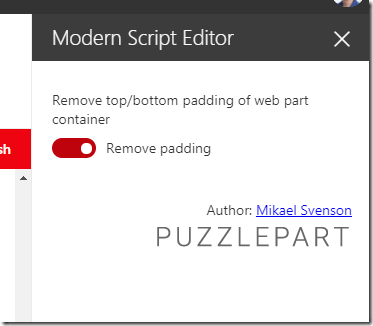
The updated script web part has an added property to remove the top/bottom padding of the container, thus making the web part take up zero real estate on the page, perfect for this case.

image

Once you save your page and test the link this is what it looks like:

scroll

If you want a more smooth scroll that’s also possible with your favorite smoothing scrolling script/css.

Monday, January 8, 2018

The sweet spot for using SharePoint site designs and site scripts..

Disclaimer: This post is written based on the current functionality being rolled out, and might not be applicable in the future as the functionality evolves.

….is currently Communication Sites.

Read on if you feel like it :)

Monday, November 20, 2017

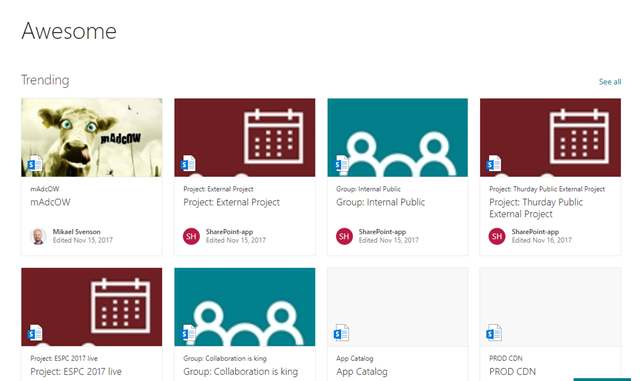
Modifying the query template for the Highlighted Content modern web part – a very brittle solution

image

The highlighted content web part in modern pages is the successor for the content search web part. It does a pretty decent job, but people like me who like to tune what we get back want some more expert settings, much like we had in the content search web part.

In the highlighted content web part you can add multiple filters today, which are then joined with an OR. This is useful for many scenarios, but often you want to have AND to limit results instead. For example all sites with a specific title, and not all sites OR all items with a specific title.

The above scenario is one I just looked at, and I didn’t want to roll my own web part. Elio Struyf has a PnP sample search web part, but it doesn’t support the same visuals – and I’ll probably end up modifying this in the end ;) But that’s not for this post.

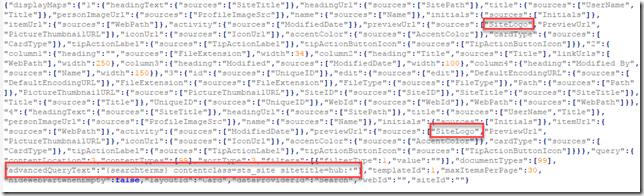
I decided to dig into the properties of the highlighted content web part, and turns out it has a property named advancedQueryText, which is the query template. This property is not included in the UI, but using for example PnP PowerShell you can set this.

The below JSON has a couple of modifications. I have added SiteLogo as an extra managed property to use when showing the result preview, and I have added KQL in the advancedQueryText property.

image

You can download the properties file from my GitHub repo and modify as needed: https://github.com/wobba/RandomFiles/blob/master/searchprops.json

The below PnP powershell creates a new page, and adds a web part with the properties specified.

$pageName = "Awesome"
Connect-PnPOnline -Url https://contoso.sharepoint.com/sites/awesome
Add-PnPClientSidePage -Name $pageName
$searchProps = Get-Content -Path .\searchprops.json -Raw
Add-PnPClientSideWebPart -Page $pageName -DefaultWebPartType ContentRollup -WebPartProperties $searchProps

The caveat is of course that if you edit the web part properties in the UI, everything breaks ;) Which means this is not 100% production ready yet. Hopefully the advancedQueryText property will make it’s way to the UI soon.

References:

Wednesday, July 12, 2017

Every (blank) pixel counts! - Minor quirk on custom ribbon action icons in modern lists

Typically the icon for a custom ribbon action in classic pages is 32x32 pixels. On modern lists the icon however is 20x20 pixels. If you use a 32x32 pixel image this is what it will looks like in classic and modern view.

image

Notice in modern view how the icon goes below the base line of the default ribbon icons, and that the icon is a little fuzzy. This is due to scaling 32x32 down to 20x20, which is not a direct pixel multiple. The solution is to pad the 32x32 image to 40x40. Keep the icon the same size, but increase the white space.

Original 32x32 icon

image

Padded 40x40 icon

image

In classic mode, the icon will look the same due to the use of CSS to position the image, where any overflow is hidden. In modern view however we now get a crisp image aligned with the existing icons. The crispness is due to the image being 40x40 pixels, and divided exactly in half – which avoids pixel smoothing on resize.

image

This might not be a big deal, but every pixel counts right? Winking smileGoing forward for modern pages you would use SharePoint Framework extensions for ribbon actions instead which allows the use of Office UI Fabric font icons instead of image files.

Thursday, June 15, 2017

How to remove the banner on modern pages from the UI

I have previously written about how to change the layout type of a modern page using PnP PowerShell in order to get rid of the huuuuge top banner. Yes,  I know Microsoft is in the works of adding functionality to the UI to allow header changes, but until that happens I figured I’d show a way to accomplish the same for a Power User.

The layout of a modern page is handled by a column named Page Layout Type (PageLayoutType), and it’s part of a sealed content type named Site Page.

You cannot modify a sealed content, and the Page Layout Type column is hidden, so we need a tiny bit of trickery to get this working.

In your site, navigate to site settings, and to site site content types. Or tack /_layouts/15/mngctype.aspx at the end of the URL to go there directly.

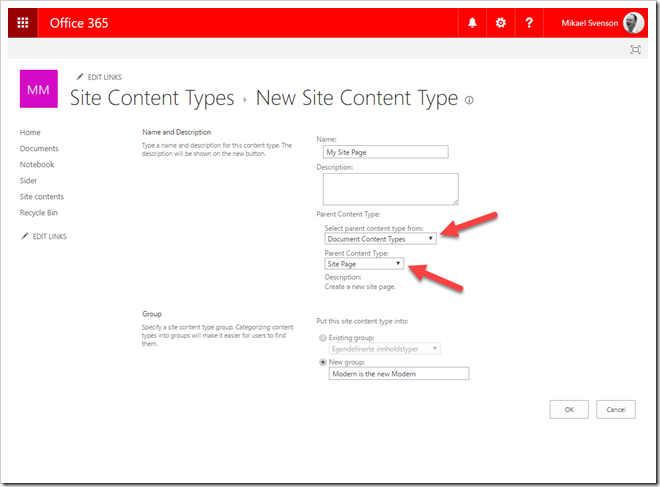
Create a new content type named My Site Page which inherits from the Site Page content type.
image

Copy the content type id from the URL in your browser and create the following URL:

https://contoso.sharepoint.com/teams/modernisthenewmodern/_layouts/15/ManageContentTypeField.aspx?ctype=0x0101009D1CB255DA76424F860D91F20E6C411800FA0F5B1F8210094AB33AED9F195597A5&Field=PageLayoutType

On the column screen, make no changes, just hit OK. This will make the column visible later. Next, navigate to the Site Pages library and go to library settings and add the previously created content type.

image

You are now ready to create your site or news page. Once the page is created and saved:

  • navigate back to the site pages library
  • select the page you created
  • click the information icon
  • change the content type to My Site Page

You will now see the Page Layout Type column visible. Change the value from Article to Home, and the banner is gone. You can change the content type back to Site Page after you have changed the layout to ensure any search based experience relying on the base type is still working.

image

Look ma, no banner!

image

Summary

Once set up, you can per page change the content type to your custom one and change the layout to get rid of the banner. It’s somewhat convoluted, but it is doable from the UI :)

Wednesday, May 31, 2017

Timeout when applying a composed look (branding) to a Team Site in an Office 365 Group

As I’ve written about before, when you create a new Office 365 Group, the Team Site will get a random funky color, often pink – a color most organizations would like to change. This can be changed by applying a composed look, specifying your own custom fonts and colors matching your own style guide.

Recently I experienced an issue when applying a composed look to the team site for an Office 365 Group where it timed out, and the colors was not applied. I opened up a support ticket and now know the reason and how to resolve it.

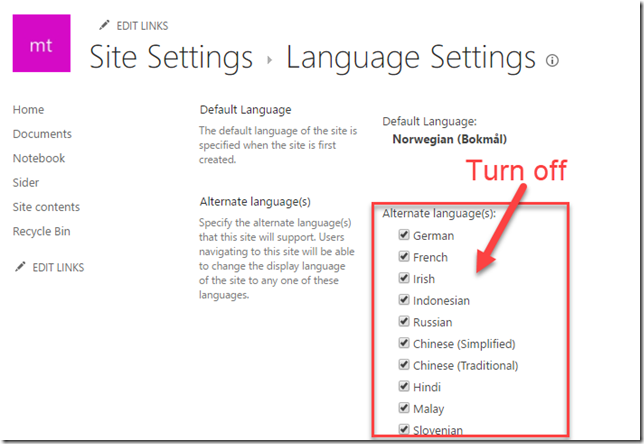
The culprit is that a team site by default have all languages available, and when applying a composed look it will apply this per language. There might be a technical sound explanation for this which I’m not aware of, but here goes.

image

Before applying the composed look, turn off all languages except the default one (/_layouts/15/muisetng.aspx). Apply the composed look without any timeout issues what so ever, and then re-enable the UI languages you need on the site.

Monday, March 6, 2017

Modern and it’s funky accent colors

I’m all about doing funky and random stuff, but the way accented colors are applied on modern pages in SharePoint Online has the distinct taste of fungi.

The colors scheme of the tenant has no bearing what so ever. It’s all calculated based on the site Title. If you however create a composed look and specify the accent colors, this will in fact overrule the random color.

A site named “a”

image

A site names “b”

image

I have not figured out the exact hashing formula to pick the color, but I have so far identified 10 colors in use – the same colors shown for sites listed on the SharePoint home page. From this list there’s a distinct tendency towards red – all very bright and alerting. How about a more calming color scheme?

#23874b
#da3b01
#0273eb
#188387
#ee0410
#757575
#eb0e3e
#e3068b
#d40ac7
#8151fd

If you don’t like any of these colors, or have a hard time finding a title to give you the right color, be sure to create and apply a composed look to your team or group site. Or go with old style pages where the randomness is no where to be seen – but where’s the fun in that?

Monday, February 6, 2017

Gaps and differences between a Group 365 Modern Team Site and a plain old Team Site

This post outlines some of the differences between an Office 365 Group Modern Team Site and a plain old SharePoint Team Site as of February 7th 2017.

[Updated to match the GA announcement February 23rd 2017]

The gaps may or may not affect you, but from a document management perspective we keep hitting several of the differences in every single projects which often leads to falling back to a plain old Team Site.

As there has been talks of enrolling/upgrading plain old Team Sites into a modern site in a group, I hope the limitations will go away and align more in the future. At Puzzlepart we see the most important ones being able to programmatically configure up pages in a scalable way and having access to synchronized content types.

image