Friday, July 7, 2017

A first look at the layout options in Communication Sites

Note: This article is based on the preview of Communication Sites

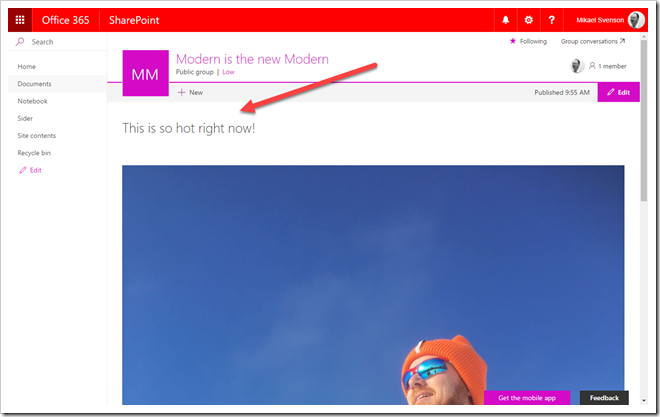
Microsoft announced the preview of Communication Sites in first release a little over a week ago. At first I was expecting more, but after playing more with it, it’s actually a pretty good preview when it comes to content layout. And with the new Hero web part, which let’s you manually highlight content/links, creating a nice looking landing page is much easier than before.

image

The main difference between a Communication site and a Modern site as far as I can tell are that a comm sites have no left navigation, and you have the option to enable commenting on the pages you create.

Thursday, July 6, 2017

Getting URL query parameters when working in the SharePoint Framework

Image result for upper lower case p

Fetching values from the query string of the URL is something developers are constantly doing, as in this sample URL where I have two parameters, mvp and status.

https://madcow.sharepoint.com/?mvp=mikael&status=awesome

What you can use is the URL object in JavaScript which is still in a proposed spec.

The URL object is not fully supported by all browsers yet (looking at you Microsoft), but fortunately SPFx provides a polyfill for the URL object so it will work fine in IE10 as well.

There is however a small issue. Currently SPFx uses TypeScript v2.2.2, which access the query parameters with searchparams (lowercase p) instead of searchParams (uppercase p). This means that to avoid an error in VSCode or when building you need to use the lowercase p version – but this breaks in browsers which expect the uppercase p version *sigh*.

TypeScript v2.3.4, for example, support the uppercase p version just fine. So until SPFx bumps the TypeScript version to something supporting the uppercase p version, a workaround is to use the any keyword in TypeScript at the cost of loosing intellisense, but it works.

const url : any = new URL(window.location.href);
const mvp = url.searchParams.get("mvp");
const awesome = url.searchParams.get("awesome");

This way you won’t get errors when building your SPFx solution, nor in any browsers. Happy query parametering – or write your own parser (or as Waldek Mastykarz said when chatting on this, use left-pad :)

Wednesday, July 5, 2017

Getting signalR to work with the SharePoint framework

image

I’m creating a web part which will talk to a signalR back-end service for some document archiving with SharePoint. signalR on the client requires jQuery, which is the tricky part. I tried a few things without getting it to work, but turns out it’s not too hard to get working when you have Waldek Mastykarz on speed dial, so this post is mostly his work :)

First off you need to include signalR, and I picked the un-official npm package ms-signalr-client. Add it with:

npm i ms-signalr-client -save

I had already read Waldek’s post about how to include jQuery as an external reference, but it didn’t “just” work. This was the point where I called up Waldek.

By using Rencore’s script checker, we found out that signalR was a non-module, and that it requires jQuery to be available on the $ sign. To make this work I had to change the globalName reference in config.json of my SPFx project to $ instead of jQuery.

"externals": {
    "jquery": {
      "path": "https://code.jquery.com/jquery-2.1.1.min.js",
      "globalName": "$"
    }
}

and in my .tsx file I had to add the following imports:

import * as $ from 'jquery';
import 'ms-signalr-client';

I could now instantiate signalR as easy as pie in my code.

let connection = $.hubConnection(https://myserver/, { useDefaultPath: false });

Friday, June 23, 2017

Rendering Related Items as links in SharePoint (classic lists)

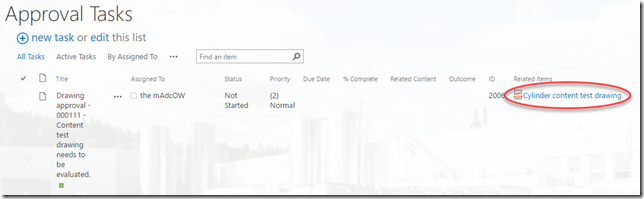
I’m doing minor work on a SharePoint 2013 installation every now and then and got a request to render the Related Items column introduced in SharePoint 2013 as an actual link instead of showing the text 1 related items.

The customer is running a workflow for approval and the task list looks like this by default.

image

If you go to the view form of the item you get a link to the related items, but having this in the list view would be preferable.The end result after applying custom rendering of the field looks like the image below. Why Microsoft decided not to render out the link by default is a mystery, but could be developer design ;)

image

An answer at SharePoint Stack Exchange had the answer, but did not complete the puzzle 100%.
Note: DO NOT do as the link in that answer points to, which is basically replacing the oob .js file for related items rendering. If you want to discuss why this is a bad idea, hit me up on twitter or fb.

Use rights for on-premises of SharePoint, Exchange and Skype for business - when you have Office 365 user licenses

This topic has been covered before (here and here), but I was recently in a conversation where this was brought up, so thought I’d do a short refresh.

To sum it up quickly; you need to purchase server licenses for your products, but depending on the Office 365 licenses you have, they cover on-premises usage rights for your employees, so no need to purchase duplicate CAL’s.

It’s all listed in the Product Terms document which you can download from https://www.microsoft.com/en-us/licensing/product-licensing/products.aspx. The document covers use rights for other products as well and is the go-to guide on licensing.

image

In the latest version dated June 1st, 2017 a fair bit down in the SharePoint section you see that SharePoint Online Plan 1 cover standard licenses and Plan 2 cover enterprise features of SharePoint 2016 on-premises. This means, you still need to purchase the appropriate server licenses, but if you have Office 365 E1-E5 licenses, you are covered on the user licenses – as E1-E5 cover SharePoint Online Plans. E1 only covers base or standard SharePoint features (see table at the end).

image

You can find the same information in the document for licenses regarding Exchange and Skype for business. There’s also a note pointing to Appendix A which puts it all in a nice table, and I’ve highlighted the ones for SharePoint use right as an example. The top row lists all the different licenses you can have for users, and the blue squares show where they apply as valid on-premises licenses.

The Base entry is standard functionality, and the additive is for enterprise functions.

image

This means that if you have an Office 365 E1 license, you can use SharePoint Standard functionality, while E3, E4 and E5 give you usage rights to Enterprise features as well like enterprise search, e-discoery, InfoPath services etc, all listed in 3.2.1 in the first image.

Tuesday, June 20, 2017

Re-introducing Microsoft Forms

About a year ago I wrote a post outlining the Microsoft Forms functionality which at the time was available only to educational tenants (EDU license).

This time around Microsoft has decided to launch a preview of the same functionality to enterprise tenants as well – and about time as it’s a nice little application indeed.

So what is Microsoft Forms? It’s an application to create simple forms, surveys and quiz's. It’s not a replacement for InfoPath, it’s not a replacement for PowerApps, but it sits somewhere in-between, and is really easy to use.

Read my original post for an in-depth review

Thursday, June 15, 2017

How to remove the banner on modern pages from the UI

I have previously written about how to change the layout type of a modern page using PnP PowerShell in order to get rid of the huuuuge top banner. Yes,  I know Microsoft is in the works of adding functionality to the UI to allow header changes, but until that happens I figured I’d show a way to accomplish the same for a Power User.

The layout of a modern page is handled by a column named Page Layout Type (PageLayoutType), and it’s part of a sealed content type named Site Page.

You cannot modify a sealed content, and the Page Layout Type column is hidden, so we need a tiny bit of trickery to get this working.

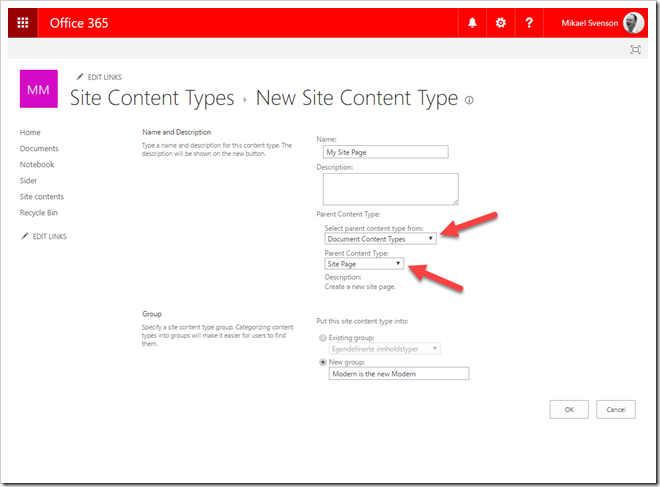
In your site, navigate to site settings, and to site site content types. Or tack /_layouts/15/mngctype.aspx at the end of the URL to go there directly.

Create a new content type named My Site Page which inherits from the Site Page content type.
image

Copy the content type id from the URL in your browser and create the following URL:

https://contoso.sharepoint.com/teams/modernisthenewmodern/_layouts/15/ManageContentTypeField.aspx?ctype=0x0101009D1CB255DA76424F860D91F20E6C411800FA0F5B1F8210094AB33AED9F195597A5&Field=PageLayoutType

On the column screen, make no changes, just hit OK. This will make the column visible later. Next, navigate to the Site Pages library and go to library settings and add the previously created content type.

image

You are now ready to create your site or news page. Once the page is created and saved:

  • navigate back to the site pages library
  • select the page you created
  • click the information icon
  • change the content type to My Site Page

You will now see the Page Layout Type column visible. Change the value from Article to Home, and the banner is gone. You can change the content type back to Site Page after you have changed the layout to ensure any search based experience relying on the base type is still working.

image

Look ma, no banner!

image

Summary

Once set up, you can per page change the content type to your custom one and change the layout to get rid of the banner. It’s somewhat convoluted, but it is doable from the UI :)

Wednesday, June 7, 2017

Accessing Microsoft Graph resources from the SharePoint Framework

You can find the complete sample web part at: https://github.com/wobba/spfx4fun/tree/master/GraphCallTest

With the recent release of the Developer Preview of the SharePoint Framework it’s now possible to start running queries against the Microsoft Graph without the use of ADAL.

The savior in this case is the introduction of the GraphHttpClient class (which at the time of writing this does not have a documentation page).  If you decode the Bearer token used by GraphHttpClient you can see the following permissions being available:

The Groups permission lets you read information about Office 365 Groups, but not everything as stated in the documentation. You can read the basic information about the group as well as Exchange data like calendar events, but I got access denied when trying to list members of a Group.

Friday, June 2, 2017

Azure AD management portal if you don’t have an Azure subscription

I got this tip from Paul Schaeflein via Slack that if you navigate to https://aad.portal.azure.com you can access the AAD of your tenant without signing up an Azure subscription. Awesome for trial tenants and managing app registrations and other AAD tasks in an quick an easy way.

You can also read the May 15th announcement for the portal from the TechNet blogs.

image

Wednesday, May 31, 2017

Timeout when applying a composed look (branding) to a Team Site in an Office 365 Group

As I’ve written about before, when you create a new Office 365 Group, the Team Site will get a random funky color, often pink – a color most organizations would like to change. This can be changed by applying a composed look, specifying your own custom fonts and colors matching your own style guide.

Recently I experienced an issue when applying a composed look to the team site for an Office 365 Group where it timed out, and the colors was not applied. I opened up a support ticket and now know the reason and how to resolve it.

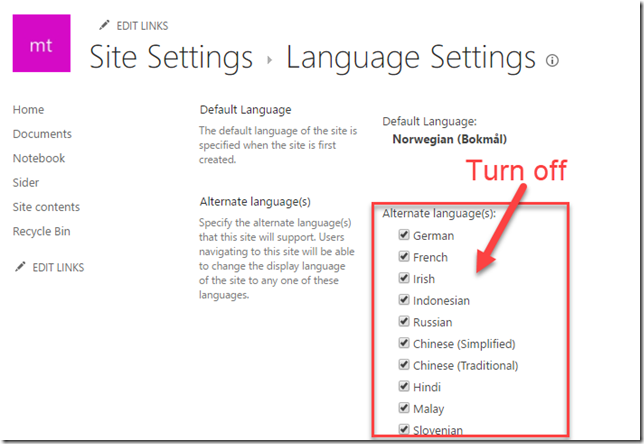
The culprit is that a team site by default have all languages available, and when applying a composed look it will apply this per language. There might be a technical sound explanation for this which I’m not aware of, but here goes.

image

Before applying the composed look, turn off all languages except the default one (/_layouts/15/muisetng.aspx). Apply the composed look without any timeout issues what so ever, and then re-enable the UI languages you need on the site.